
NEWS
01/16: Customize your multi-property type search
Create the perfect multi-property type search by adding additional fields
We’re excited to announce that you can now add additional fields to multi-property type searches. This allows you to create searches that are as specific as possible to best match your clients’ wish list and find listings that will hit the mark.
Here’s how:
- At the bottom of the Criteria tab beneath the orange button bar, you’ll see the label Additional Fields.
- Click the Add link to the right of Additional Fields.
- You’ll be presented with a list of the additional fields. There are quite a few to scroll through, so we recommend you start typing the field name(s) you want to add to your search.
- Once you find a field you want to add, highlight it and click Add. Do this as many times as you need to create the Search you want. You can also use the up and down arrows to change the order of these fields.
After you’ve added your field(s), click Back to return to your Criteria tab. Your newly added field(s) will display below the Additional Fields label.
Search now, view later with Carts
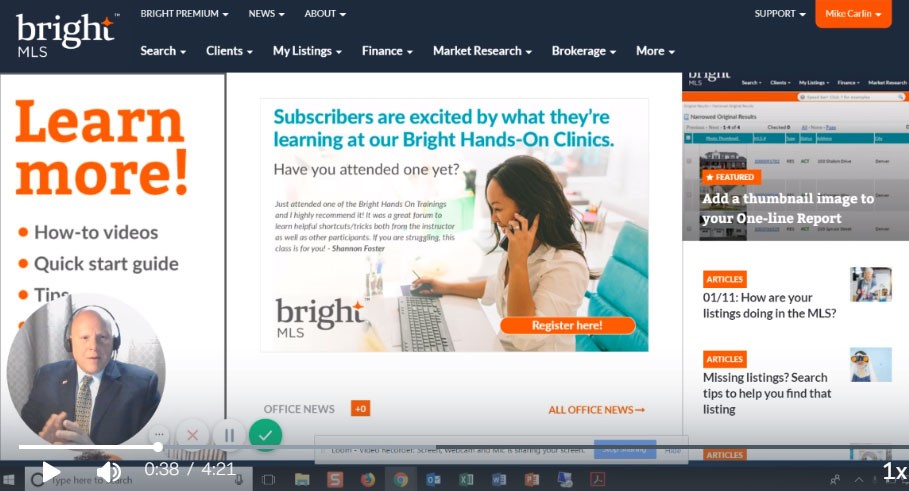
Did you know you can create a search query to get listing results now, and then save them to view later? That’s just one of the ways to use Carts. Bright MLS Customer Success Champion Mike Carlin is back to walk you through the Carts feature and how you can use it for your business.
Request a visit with out Customer Success Champions
Bright’s team of Customer Success Champions travel throughout your market area to provide assistance through training, office visits and personal consultations. Need us to stop by your office or association? Click here to request a visit.
As consumers become more educated about the home buying process, it is crucial to build an MLS that understands and meets their needs from the very beginning.